macOS 26 “liquid glass”-aware · MIT · one file or SPM

Paint macOS docGroup tabs
Apple says you can’t touch.

SwiftUI DocumentGroup hands you native document tabs for free - and then paints them flat system gray with zero public API to change it. Tabberwocky reaches into the private tab bar and restyles it anyway. Bar, fills, the active outline, labels, the + button - and a live color per tab.

Apple Silicon · macOS 15+ · free & open source. If macOS blocks it on first launch, right-click the app → Open.

Welcome.md - edited
×Welcome.md Notes.txt Draft.md Theme.swift README.md +
Try a theme →
The real thing - a 30-second tour: themes, per-tab colors, right-click recolor, and collapsible tab groups.

An evening well spent

“You can’t style those tabs.” So I did.

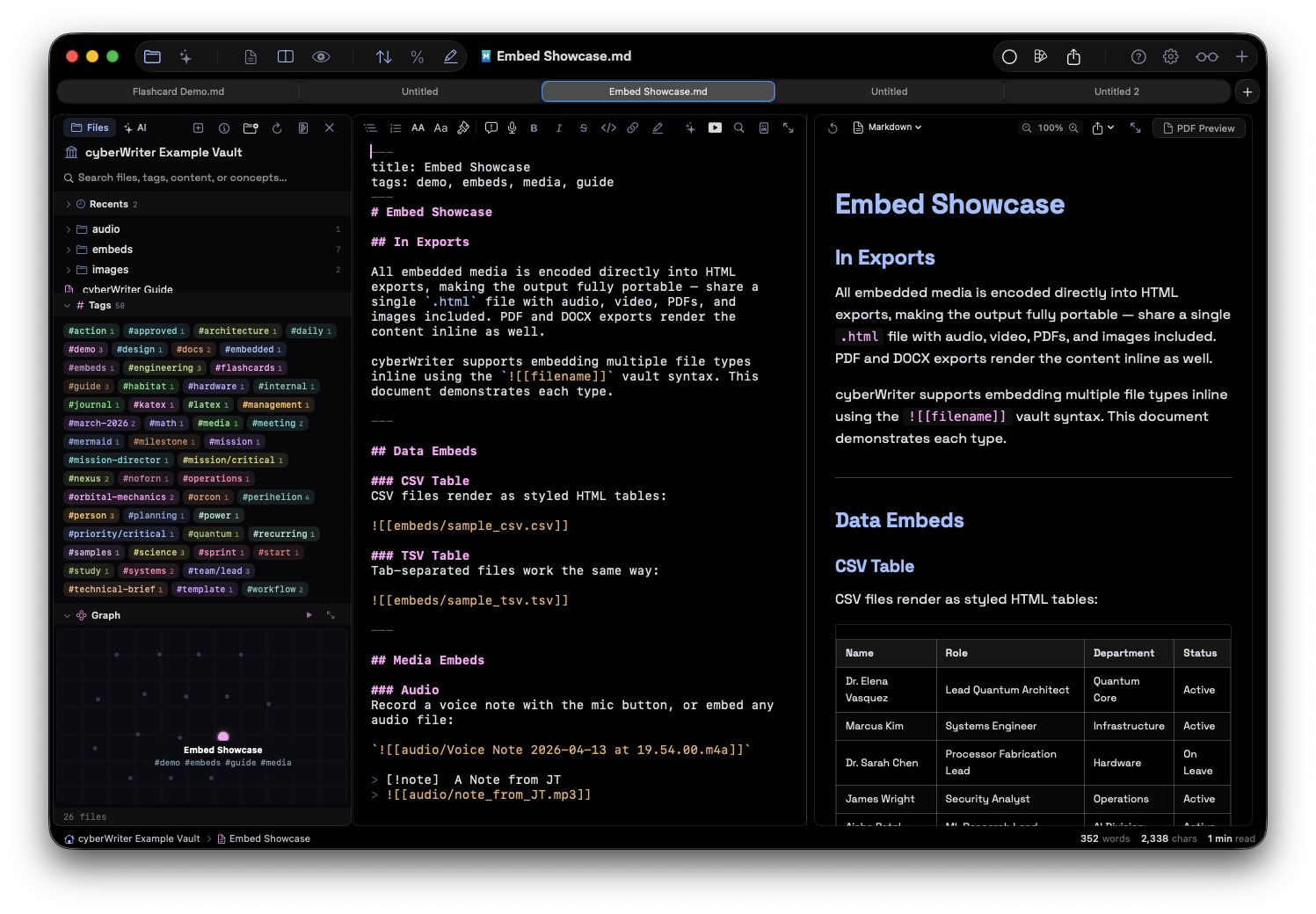
I’ve been building a Markdown app for almost a year. It uses SwiftUI’s DocumentGroup, so you get document tabs for free - which is great, except they’re flat gray system things you can’t touch. I wanted them to match the rest of the app. Dark, a little accent color, nothing wild.

I looked it up. The consensus online is basically “you can’t, the tab bar is private, give up.” So naturally I spent an evening proving that wrong.

The obvious fix is to throw out DocumentGroup and build your own tab bar. But the moment you leave it you also give up Save, autosave, the Versions browser, window restoration, and the ⌘1-9 shortcuts. That’s a pile of plumbing to rebuild for slightly nicer chrome. Hard pass.

Third option: keep all the native machinery and just repaint the chrome. The tab bar is a real view hierarchy - NSTabBar → NSTabButton - it’s just private. Walk down from the window’s content view, match the class names, grab the views, set layer.backgroundColor. First attempt was a garish test just to see if anything stuck.

It stuck. Once the layers proved paintable, the rest was just taste - themes, a recolored active tab, and eventually a color picker on right-click. I pulled the working part into a small MIT library. You hand it your colors plus an optional per-tab color closure, call start() once, and that’s it.
The reachable surface

Everything you can repaint

No public API for any of this. Tabberwocky exposes it through one style block plus a couple of optional per-tab closures.

Bar background

Match the strip behind the tabs to your titlebar instead of system gray.

Per-tab fill

Any color, any alpha - uniform, by index, by #tag, or a user pick.

Active outline

An accent border drawn around the selected tab so it actually reads as active.

Aa

Label colors

Active / inactive text, plus per-tab labels via the tab’s attributedTitle.

The + button

Tint the new-tab glyph so it stops being the one gray thing left over.

Live updates

Colors react as you type a tag or pick a swatch - keyed to the document, not the slot.

Then it got fun

Once the fill is yours, it doesn’t have to be boring

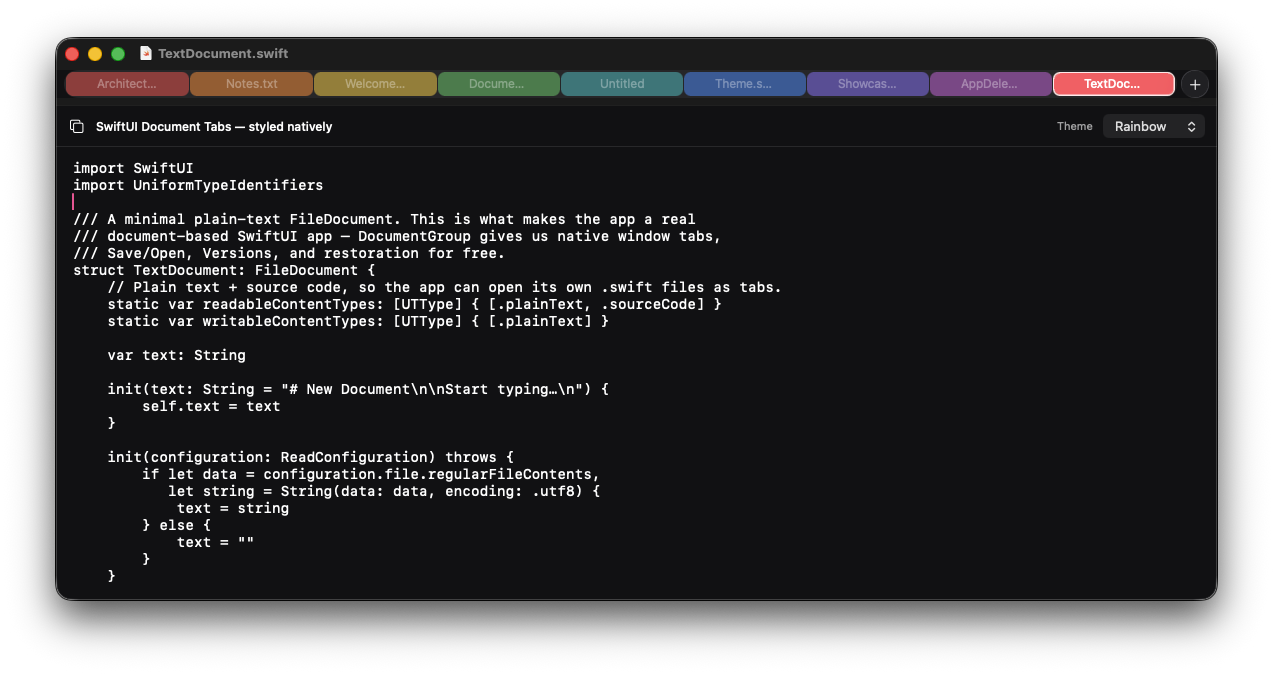
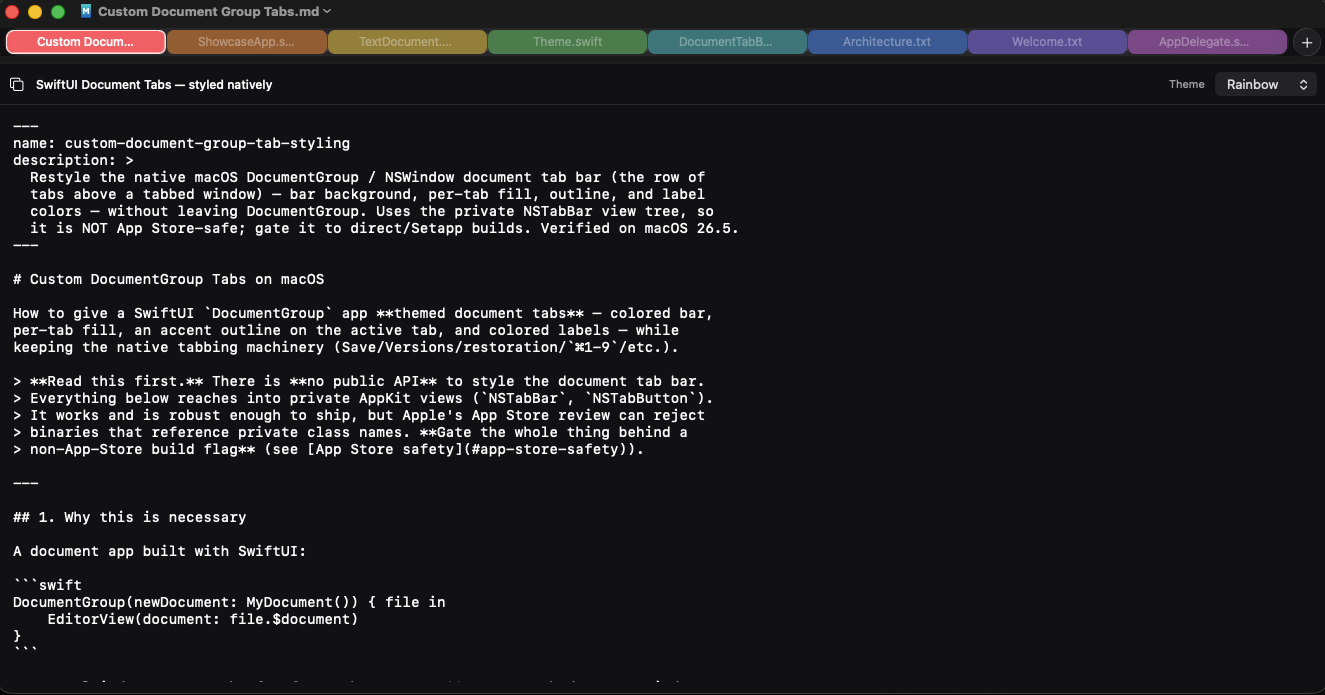
The same native tab bar, restyled live. Because the fill is per tab, every tab can have its own color. I called the last one Rainbow mostly because it made me laugh - the demo opens its own source files as tabs, so this is the thing reading itself.

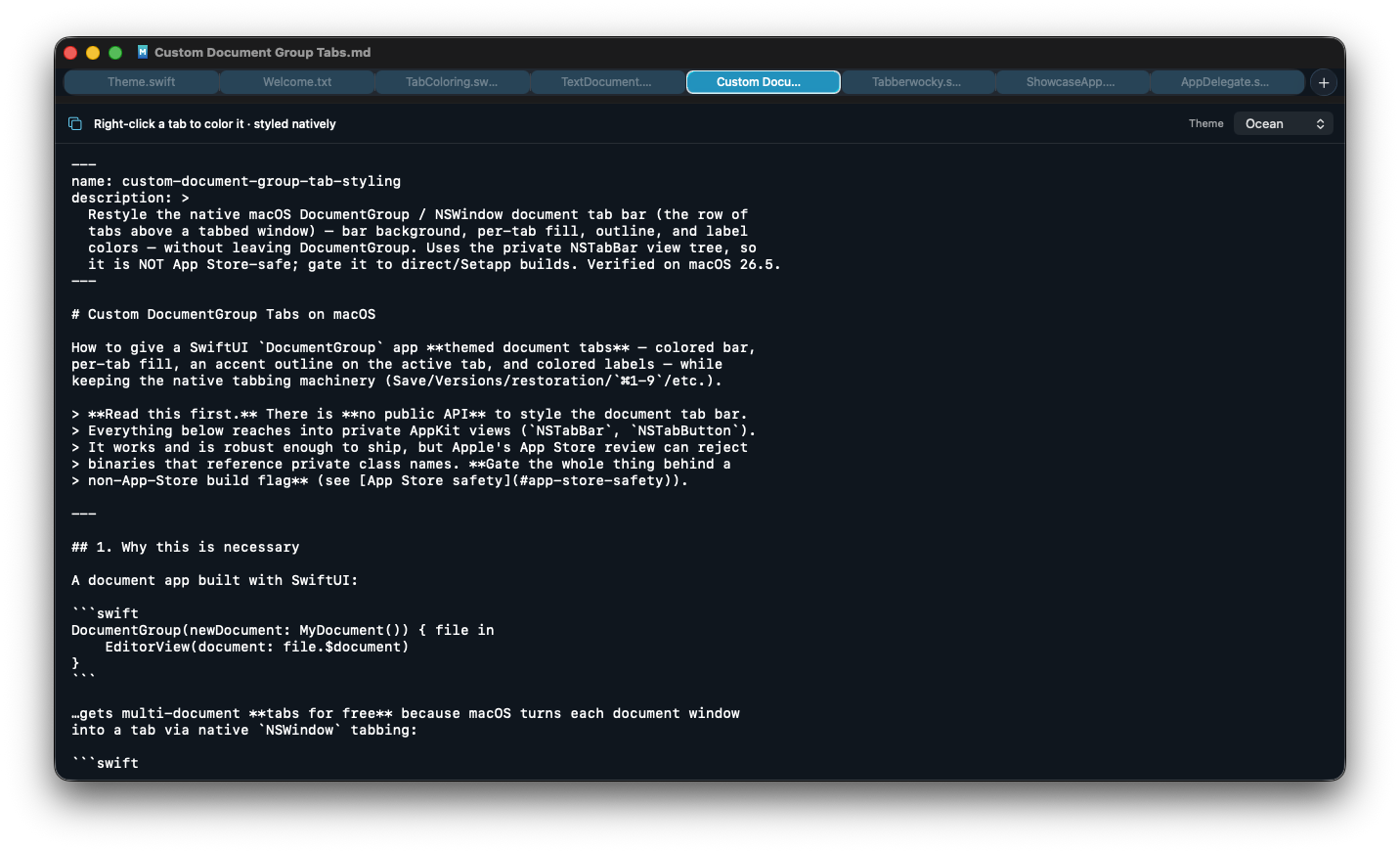
Ocean theme
Ocean - cool blues across the strip.
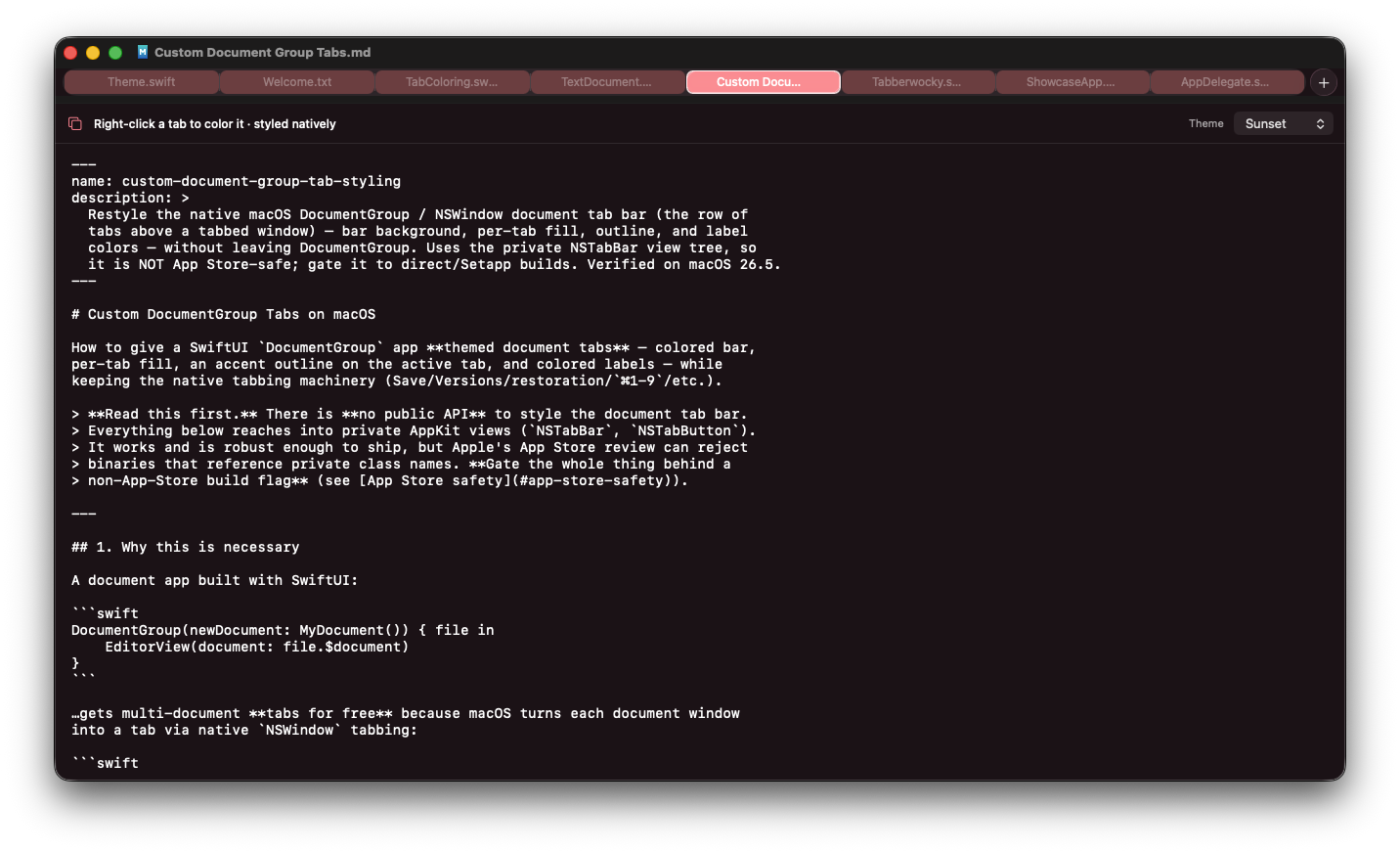
Sunset theme
Sunset - warm gradient of tabs.
Rainbow theme - every tab its own color
Rainbow - a different color per tab, reading the library’s own source.
Eight tabs, full width
Eight tabs, full width - holds up at scale.
Accent active tab
A single accent active tab against muted neighbors.

The part I actually wanted

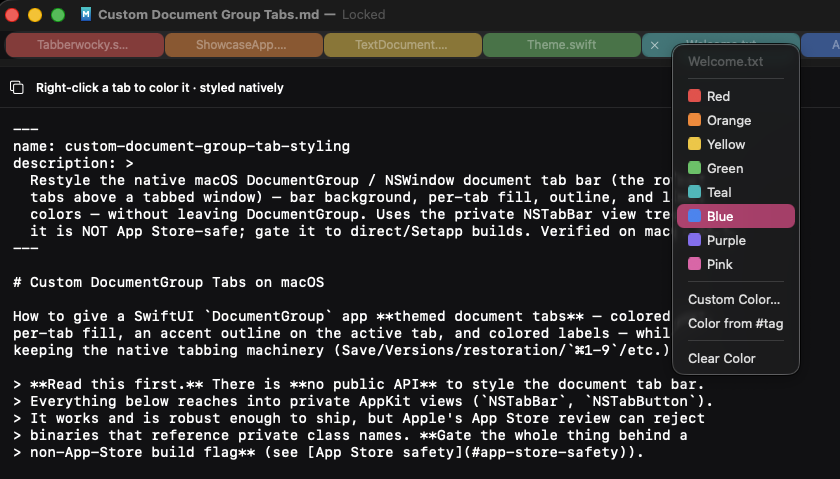
Right-click a tab → pick a color. Or color it from a #tag.

A note tagged #blue gets a blue tab, and it updates live as you type. It’s keyed to the document, so the color sticks even if you reorder the tabs - or relaunch, with the optional color store.

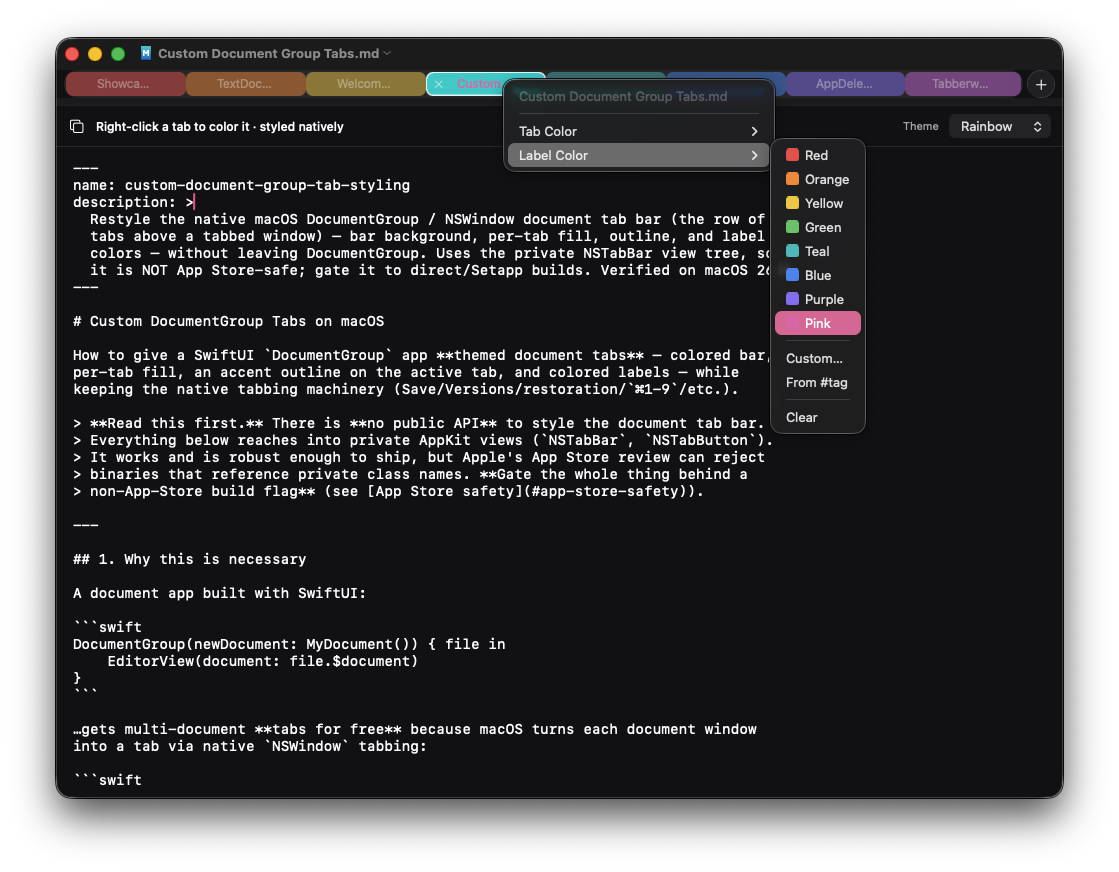
Right-click a tab to set a custom color, or color from a #tag
Right-click → preset, custom color, “Color from #tag”, or clear.
Per-tab label color, independent of the fill
Label color is independent of the fill - keep text legible on saturated tabs.

Bonus: collapsible tab groups

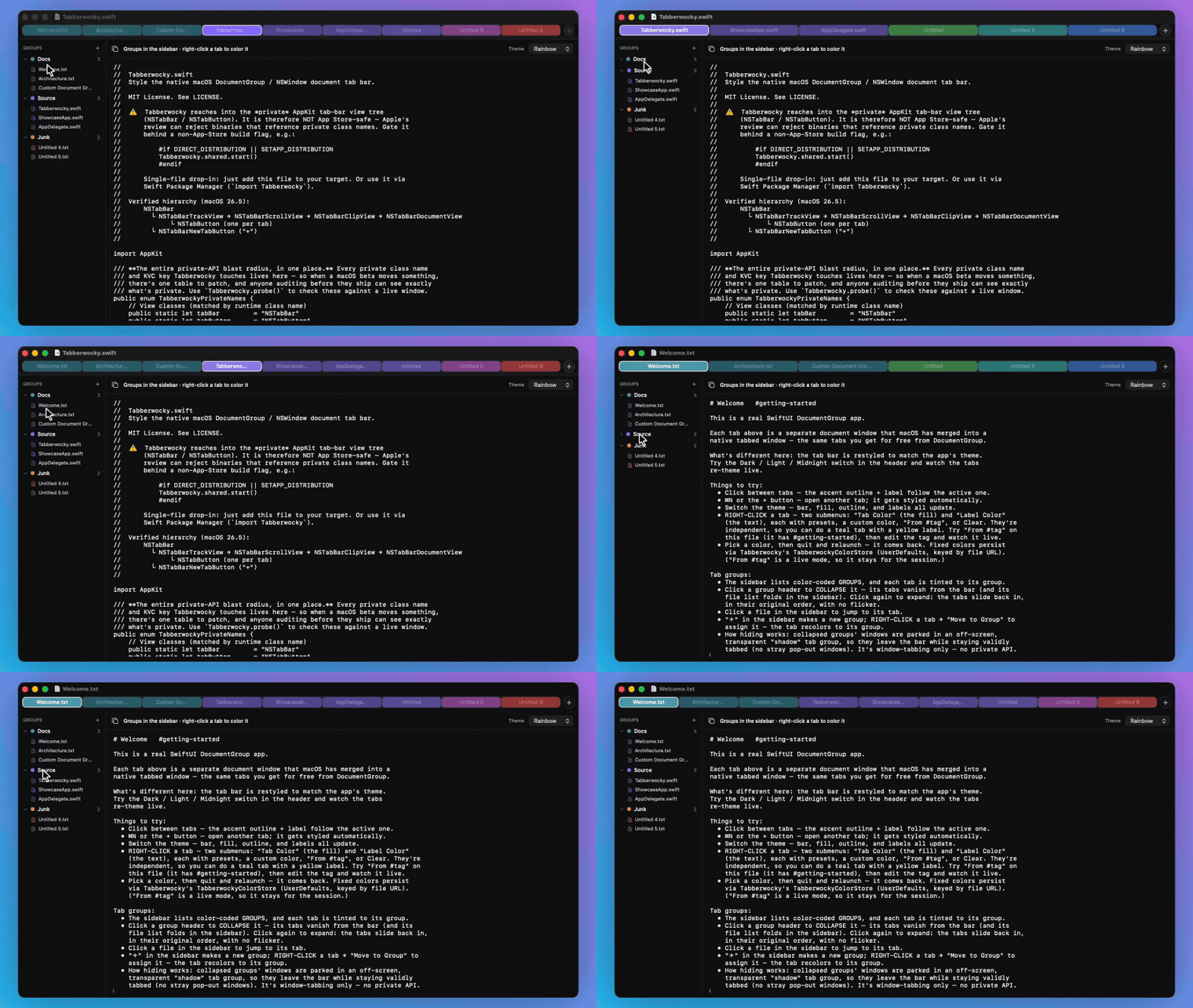
An optional add-on adds Safari-style, color-coded groups - and collapsing one actually hides its tabs. The trick: collapsed windows are parked in an off-screen, transparent “shadow” window so they leave the bar while staying validly tabbed (no stray pop-out windows). Expanding restores them, in order, with no flicker. This part is window-tabbing only - no private-API risk.

Collapsing a tab group hides its tabs from the bar; expanding restores them in order
Collapse a group → its tabs vanish from the bar. Expand → they slide back, in order.

The whole integration

Your colors in, styled tabs out

Call it once at launch behind your distribution flag. Optionally return a color per tab from fillForTab - key off the document’s URL to color by tag, by a user pick, anything.

AppDelegate.swift
#if DIRECT_DISTRIBUTION || SETAPP_DISTRIBUTION
Tabberwocky.shared.style = {
    TabberwockyStyle(
        barBackground: .black,
        activeFill:    NSColor.white.withAlphaComponent(0.10),
        inactiveFill:  NSColor.white.withAlphaComponent(0.04),
        activeText:    .systemBlue,
        activeOutline: .systemBlue,
        newButtonTint: .systemBlue
    )
}
Tabberwocky.shared.start()                 // re-applies on key / update / resize

// dynamic: a color per tab, keyed to the document
Tabberwocky.shared.fillForTab = { index, documentURL, active in
    if let chosen = myColorStore[documentURL] { return chosen }   // user pick
    return rainbow[index % rainbow.count]                          // …or by index
}
#endif

Two ways in

Install

No dependencies. Add it as a Swift package, or just drag the one file into your target.

SPM Swift Package Manager

Add the package, then import Tabberwocky.

.package(
  url: "https://github.com/uncSoft/Tabberwocky",
  from: "1.1.0"
)

1 FILE Drag & drop

Drop Sources/Tabberwocky/Tabberwocky.swift into your target. Two optional add-ons: a color store for persistence, and tab groups.

// also enable native window tabbing
NSWindow.allowsAutomaticWindowTabbing = true
⚠️

The honest part

Caveats - this is private API

I’m not going to pretend otherwise. It works, it’s robust enough that I ship it in my own paid app - but you should know exactly what you’re opting into.

App Store TOS - untested. Referencing private class names can get a binary rejected, but Tabberwocky has not actually been put through Apple’s App Store review yet - so whether it trips the official App Store TOS is genuinely unknown. It might sail right through; it might get flagged. Until someone tests it, treat App Store safety as an open question and gate the whole thing behind a non-App-Store build flag (Developer ID / Setapp / direct). The App Store build of my own app keeps the stock tabs.
  • Private view hierarchy. Class names and structure can shift between macOS releases. Tabberwocky fails soft - if it can’t find the views, it simply does nothing. Verified on macOS 26.5.
  • The Tahoe glass floor. On macOS 26 each tab’s label lives inside an NSGlassEffectView, so you can tint the glass but can’t fully flatten it without losing the label. That’s the floor, and I stopped fighting it.
  • Re-applies on notifications, not a timer. macOS repaints the bar on its own, so Tabberwocky reasserts your style (coalesced) when the system redraws - no polling.
  • No selected-state to read. The tab views aren’t NSButtons, so the active tab is found via the public NSWindowTabGroup - that part is actually supported.

None of that bothered me for an app I distribute directly. Your mileage may vary - and if you do submit it to the App Store, I’d love to hear how review goes.